
The ultimate Linux Basics Cheat Sheet


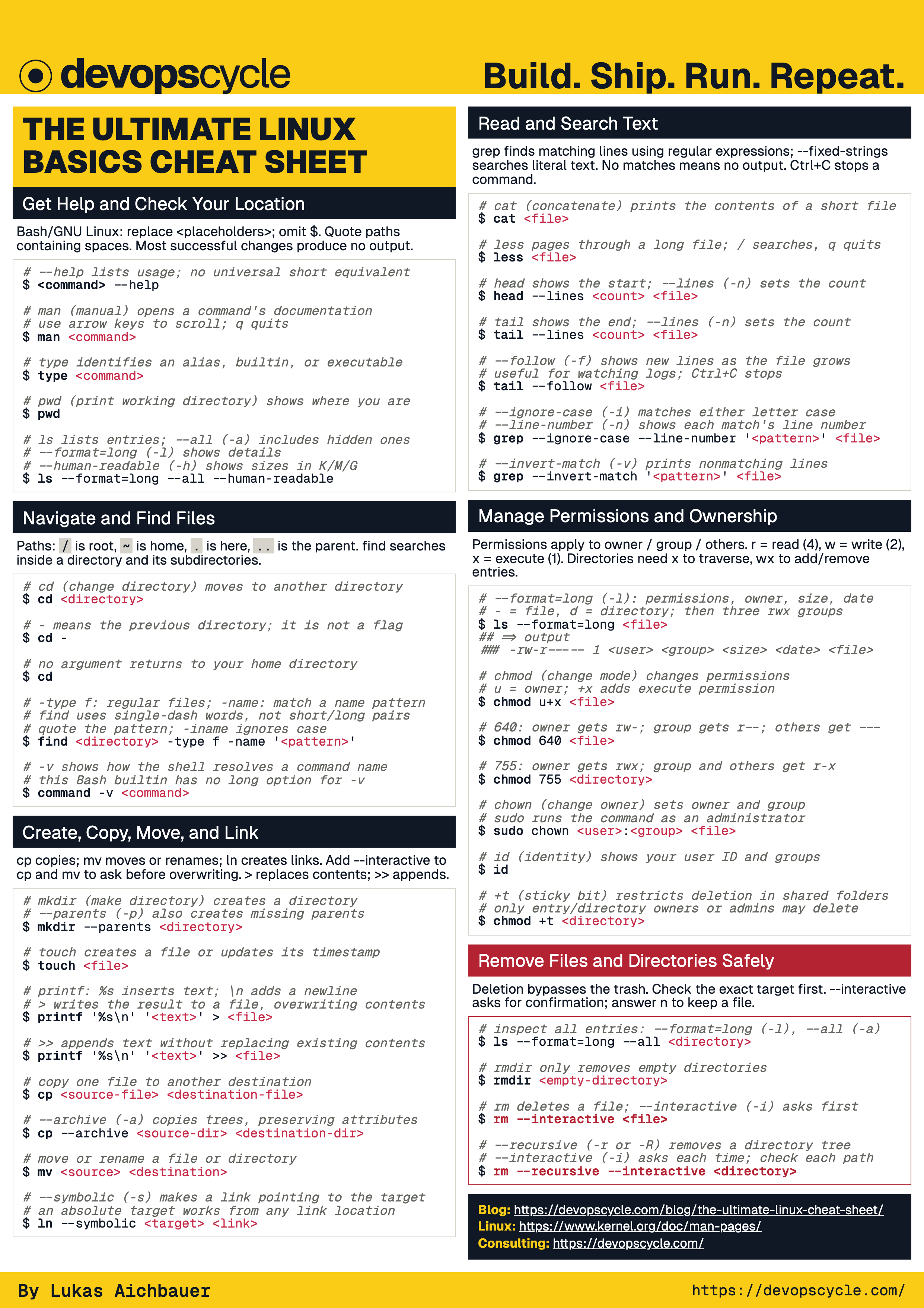
TLDR; Get your Linux Cheat Sheet as a PDF or as an image. This beginner-first guide covers the commands you need to navigate files, inspect text and manage permissions. The examples use Bash-compatible syntax—Bash means Bourne Again Shell—and work on most Linux distributions. Commands that depend on systemd or a particular package manager are clearly marked.
Download The Ultimate Linux Basics Cheat Sheet
Please download your Linux Cheat Sheet to keep the most useful commands nearby. You are welcome to share it with colleagues and friends.
Do You Want More Resources Like This?
Join our community and sign up for our newsletter to stay up-to-date on the latest DevOps topics. Get our newest practical resources and insights directly in your inbox.
What Is Linux?
Linux is the kernel at the center of operating systems such as Ubuntu, Debian, Fedora, Red Hat Enterprise Linux, Arch Linux and many others. The kernel is the privileged core that sits between applications and the computer's hardware. Programs ask it to perform operations through system calls instead of accessing processors, memory, disks or network devices directly.
The kernel is responsible for several fundamental parts of the system:
- Processes: it starts and stops programs, gives them processor time and keeps them isolated so that one process cannot freely access another process's data.
- Memory: it assigns working memory to processes, protects each process's address space and can move inactive memory pages to swap when necessary.
- Hardware: it communicates with devices through drivers and provides applications with consistent interfaces for hardware such as keyboards, displays, disks and USB devices.
- Filesystems: it organizes access to files and directories, enforces ownership and permissions, and connects different storage filesystems into a single directory tree beginning at
/. - Networking: it implements network protocols, routes packets through network interfaces and provides sockets that applications use to communicate locally or across a network.
A complete Linux operating system combines that kernel with command-line tools, libraries, a package manager and, optionally, a desktop environment. That complete combination is called a Linux distribution, or distro.
Linux systems can look different, but the core command-line experience is remarkably consistent. The following commands are just a few common examples available across mainstream distributions:
pwd: print working directory — displays the absolute path of your current directory.ls: list — displays files and directories.cp: copy — copies files and directories.grep: global regular expression print — searches text and prints matching lines. Its name comes from the historical editor commandg/re/p.
What Are A Terminal, Shell And Command?
A terminal is the application or interface in which you type. A shell reads your command, expands variables and wildcards, connects programs through pipes, and asks the operating system to run them. Bash is a common Linux shell. You may also encounter these shells:
- zsh: z shell — an interactive shell with extensive completion and customization features.
- fish: friendly interactive shell — a shell focused on discoverability and convenient interactive defaults.
- dash: debian almquist shell — a small, fast shell commonly used to run system scripts.
If you use zsh, Oh My Zsh is an open-source framework for managing your zsh configuration. It provides themes, plugins and helpers that can make an interactive shell more convenient, but it is not a shell itself.
A command normally follows this shape:
command [options] [arguments]
For example, ls --format=long --all --human-readable /var/log runs the ls program. This guide uses descriptive long options whenever they exist and introduces each shorter equivalent once, in a comment or nearby text. The options in this example mean:
--format=long(short form:-l) uses a detailed, long listing format.--all(short form:-a) includes hidden entries.--human-readable(short form:-h) displays file sizes in human-readable units.
You can combine the three short forms as -lah, but the long forms are easier to recognize when you are learning.
/var/log is the directory to inspect.
Linux command names and paths are case-sensitive. notes.txt and Notes.txt can be two different files.
Output below is illustrative: paths, dates, owners and IDs will vary on your machine. Lines beginning with ### show example output; # No output on success explains commands that normally finish silently. Do not type $, the output lines or the explanatory comments. Interactive programs such as man and less display a screen rather than returning immediately to the prompt.
How Do You Get Help In Linux?
You do not need to memorize every option. Learn how to find the documentation instead.
The following commands help you discover how other commands work:
man: manual — opens a command's detailed manual page.type: reports whether a name resolves to a program, alias, function or shell built-in.cd: change directory — moves the shell to another directory.apropos: searches manual-page names and descriptions for a topic.
# show a short description of a command's options
$ ls --help
## => output
### Usage: ls [OPTION]... [FILE]...
### List information about the FILEs (the current directory by default).
### [excerpt; more options follow]

# open the manual; press q to leave and /word to search
$ man ls
## => output
### LS(1)                     User Commands                     LS(1)
### NAME
###        ls - list directory contents
### [manual excerpt; press q to return to the shell]

# identify whether a name is a program, alias or shell built-in
$ type cd
## => output
### cd is a shell builtin

# find manual pages related to a topic
$ apropos "copy files"
## => output
### cp (1) - copy files and directories

# interrupt the currently running foreground command
# Press Ctrl+C (keyboard shortcut)
# The foreground command stops and the shell prompt returns.
Ctrl+C is a keyboard shortcut that interrupts the foreground command, not a command that you type at the prompt.
man pages describe command syntax using placeholders and special notation. For example, a manual may show this synopsis:
cp [OPTION]... SOURCE... DIRECTORY
Read each part separately:
cpis the command name. Type it as shown.- Square brackets
[ ]mean the enclosed part is optional.[OPTION]means you can leave out options entirely. - The ellipsis
...means the preceding part can be repeated. It does not stand for a filename or tell you to type three dots. [OPTION]...combines those rules: supply zero, one or several options, such as--interactive --verbose.SOURCE...means one or more source paths, separated by spaces. BecauseSOURCEis not inside brackets, at least one is required. For example,report.txt notes.txtsupplies two sources.DIRECTORYis the destination directory. In this form of the command, it is required and comes after all the sources.
OPTION, SOURCE and DIRECTORY are placeholders: replace them with actual options and paths. The brackets and ellipses describe the syntax; do not type them in this example.
Assuming report.txt, notes.txt and the backup directory already exist, this command copies both files into backup without using any options:
$ cp report.txt notes.txt backup/
# No output on success.
How Do You Navigate The Linux File System?
Linux organizes files below one root directory written as /. An absolute path begins at /, such as /var/log/syslog. A relative path begins at your current directory, such as logs/app.log.
Your personal files normally live in /home/your-name. The shorthand ~ means your home directory. A single dot, ., means the current directory, and two dots, .., mean its parent.
How Do You List And Change Directories?
# print the absolute path of the current directory
$ pwd
## => output
### /home/ada

# list visible entries
$ ls
## => output
### Documents  Downloads  linux-cheat-sheet

# include hidden entries, details and readable sizes
$ ls --format=long --all --human-readable
## => output
### [listing excerpt]
### drwxr-x--- 6 ada developers 4.0K Aug 11 10:00 .
### drwxr-xr-x 3 root root       4.0K Aug 11 09:00 ..
### -rw-r--r-- 1 ada developers 3.7K Aug 11 09:00 .bashrc
### drwxr-xr-x 2 ada developers 4.0K Aug 11 09:10 Documents
### drwxr-xr-x 2 ada developers 4.0K Aug 11 09:15 Downloads
### drwxr-xr-x 3 ada developers 4.0K Aug 11 10:00 linux-cheat-sheet

# change to an absolute path
$ cd /var/log
# No output on success.

# move to the parent directory
$ cd ..
# No output on success.

# return to the previous directory
$ cd -
## => output
### /var/log

# return to your home directory
$ cd
# No output on success.
Names beginning with a dot are hidden from a normal ls, but they are not protected or secret. Files such as .bashrc are often configuration files.
How Do You Find Files And Commands?
This section introduces two commands:
find: searches a directory tree using conditions such as name, type and modification time.command: runs or inspects a command without relying on a same-named shell function; here,command -vshows what the shell would run.
# find regular files named app.log below the current directory
$ find . -type f -name 'app.log'
## => output
### ./linux-cheat-sheet/logs/app.log

# match names without case sensitivity
$ find /var/log -type f -iname '*.log'
## => output
### /var/log/alternatives.log
### /var/log/dpkg.log
### [example matches; some directories may report Permission denied]

# find directories modified within the last day
$ find . -type d -mtime -1
## => output
### .
### ./linux-cheat-sheet
### ./linux-cheat-sheet/logs

# show the executable that the shell would run
$ command -v ssh
## => output
### /usr/bin/ssh
These sample matches assume the named files and directories exist. find prints nothing if no entries match; system log locations and access permissions vary by distribution.
Quote wildcard patterns passed to find. Without quotes, your shell may expand them before find receives the pattern.
Expressions such as -type, -name, -iname and -mtime are part of find's expression language and have no corresponding double-dash long forms. Similarly, the shell's command -v lookup uses the portable short form and has no long equivalent.
How Do You Manage Files And Directories?
We will use a small directory in your home folder for safe practice.
The setup uses three new commands:
mkdir: make directory — creates directories.touch: creates an empty file or updates an existing file's timestamps.printf: print formatted — writes text using a specified format.
$ mkdir --parents ~/linux-cheat-sheet/notes # short: -p
# No output on success.

$ cd ~/linux-cheat-sheet
# No output on success.

$ touch notes/today.txt
# No output on success.

$ printf 'Learn Linux commands\n' > notes/today.txt
# No terminal output: the text is written to notes/today.txt.

$ ls --format=long notes
## => output
### total 4
### -rw-r--r-- 1 ada developers 21 Aug 11 10:00 today.txt
In the printf line, $ is the prompt (do not type it), single quotes keep the text together, \n adds a new line and > writes the output to notes/today.txt, replacing its contents. Use >> instead to append.
How Do You Create, Copy And Move Files?
Two new shortened command names appear here:
mv: move — moves or renames files and directories.ln: link — gives the same file data another name;--symboliccreates a link to a path instead.
# create an empty file or update its modification time
$ touch notes/tomorrow.txt
# No output on success.

# create a directory, including missing parents
$ mkdir --parents archive/2026
# No output on success.

# copy one file
$ cp notes/today.txt archive/2026/today.txt
# No output on success.

# preserve attributes and recursively copy a directory (short: -a)
$ cp --archive notes archive/notes-backup
# No output on success.

# rename a file
$ mv notes/tomorrow.txt notes/next.txt
# No output on success.

# move a file into another directory
$ mv notes/next.txt archive/2026/
# No output on success.

# create another name for the same file data (a hard link)
$ ln notes/today.txt notes/today-copy.txt
# No output on success.

# create a symbolic link to another path (short: -s)
$ ln --symbolic archive/2026 latest
# No output on success.
Use cp --interactive or mv --interactive (short form: -i for both) if you want a prompt before overwriting an existing destination. Scripts normally avoid interactive flags and validate their targets instead.
How Do You Remove Files Safely?
Linux command-line deletion usually bypasses a desktop trash folder.
The removal commands are:
rm: remove — deletes files or directory trees.rmdir: remove directory — deletes empty directories.
# remove one file
$ rm archive/2026/next.txt
# No output on success.

# create an empty directory for this example
$ mkdir archive/empty-directory
# No output on success.

# remove the empty directory just created
$ rmdir archive/empty-directory
# No output on success.

# ask before removing each named file (short: -i)
$ rm --interactive notes/today.txt
## => output
### rm: remove regular file 'notes/today.txt'? n

# preview the target before a recursive deletion
$ ls --format=long --all archive/notes-backup
## => output
### total 12
### drwxr-xr-x 2 ada developers 4096 Aug 11 10:00 .
### drwxr-xr-x 4 ada developers 4096 Aug 11 10:00 ..
### -rw-r--r-- 1 ada developers   21 Aug 11 10:00 today.txt
### -rw-r--r-- 1 ada developers    0 Aug 11 10:00 tomorrow.txt

# remove the directory and everything inside it (short: -r)
$ rm --recursive archive/notes-backup
# No output on success.
In the interactive example, n is your answer to the prompt; it keeps notes/today.txt for the reading example below. Answering y would delete it.
rm --recursive (short form: -r) recursively removes a directory and its contents. rm --force (short form: -f) suppresses most prompts and missing-file errors. sudo, short for substitute user do, runs a command as another user, normally root. Combining recursive removal with sudo is powerful and dangerous, especially with variables, wildcards or an incorrect current directory. Inspect the exact target first.
How Do You Read And Search Text?
Linux tools are designed to do one job well and combine with other tools. Many read plain text from standard input and write results to standard output.
How Do You View Files?
These commands display file content in different ways:
cat: concatenate — writes complete files to standard output.less: opens text in an interactive pager.head: displays the beginning of a file.tail: displays the end of a file or follows newly appended lines.
The following examples use notes/today.txt from the practice directory and assume application.log contains these five lines:
INFO Application starting
INFO Connected to database
WARN Retry scheduled
ERROR Database unavailable
INFO Application stopped
The /var/log/syslog example uses a separate system log, which may not exist on your distribution.
# print a short file
$ cat notes/today.txt
## => output
### Learn Linux commands

# page through a long file; press q to leave
$ less /var/log/syslog
## => output
### Aug 11 10:00:00 workstation systemd[1]: Started Daily apt download activities.
### [screen excerpt; press q to return to the shell]

# show the first or last 3 lines (short: -n)
$ head --lines 3 application.log
## => output
### INFO Application starting
### INFO Connected to database
### WARN Retry scheduled

$ tail --lines 3 application.log
## => output
### WARN Retry scheduled
### ERROR Database unavailable
### INFO Application stopped

# follow lines as another process appends them (short: -f)
$ tail --follow application.log
## => output
### INFO Application starting
### INFO Connected to database
### WARN Retry scheduled
### ERROR Database unavailable
### INFO Application stopped
# Keeps waiting for new lines; press Ctrl+C to stop.
cat is useful for short files and pipelines. Prefer less when a file may be large because it does not fill your terminal with the complete content at once.
How Do You Search Text With grep?
These examples use the same application.log. For the inverted match, assume settings.conf contains:
# Application settings
port=8080
log_level=info
# print matching lines
$ grep 'ERROR' application.log
## => output
### ERROR Database unavailable

# ignore case and include line numbers (short: -in)
$ grep --ignore-case --line-number 'error' application.log
## => output
### 4:ERROR Database unavailable

# search recursively below the current directory (--dereference-recursive short: -R)
$ grep --dereference-recursive --line-number --ignore-case 'database unavailable' .
## => output
### ./application.log:4:ERROR Database unavailable

# print lines that do not match (short: -v)
$ grep --invert-match '^#' settings.conf
## => output
### port=8080
### log_level=info

# use an extended regular expression (short: -E)
$ grep --extended-regexp 'ERROR|WARN' application.log
## => output
### WARN Retry scheduled
### ERROR Database unavailable
Regular expressions describe text patterns. ^ matches the beginning of a line, $ matches the end, and . matches any character. Use grep --fixed-strings (short form: -F) when your search text should be treated literally rather than as a regular expression.
How Do Linux Permissions Work?
Linux permissions apply to the owner, group and others. Each class can receive read (r), write (w) and execute (x) permission.
$ ls --format=long script.sh
## => output
### -rw-r----- 1 ada developers 42 Aug 11 10:00 script.sh
The first character describes the file type. - is a regular file and d is a directory. The following groups are owner permissions (rw-), group permissions (r--) and other permissions (---). Then 1 is the number of names for the same file data (hard links), ada the owner, developers the group, 42 the size in bytes, Aug 11 10:00 the last-modified time and script.sh the filename.
How Do You Change Permissions And Ownership?
The permission and identity commands are:
chmod: change mode — changes file or directory permission bits.chown: change owner — changes a file's owner and group.id: identity — displays user and group identifiers.groups: displays the groups to which a user belongs.
These examples assume the named files and directory already exist and that the ada user and developers group exist. sudo may ask for your password before running chown; successful chown itself prints nothing.
# add execute permission for the owner
$ chmod u+x script.sh
# No output on success.

# set owner to read/write, group to read and others to nothing
$ chmod 640 secrets.conf
# No output on success.

# set a directory to rwx for owner and rx for group and others
$ chmod 755 public-directory
# No output on success.

# change owner and group; root permission is usually required
$ sudo chown ada:developers report.txt
# No output on success.

# inspect your user ID and groups
$ id
## => output
### uid=1000(ada) gid=1000(developers) groups=1000(developers),27(sudo)

$ groups
## => output
### developers sudo
Numeric permissions assign a value to each permission:
4— read (r): view a file's contents.2— write (w): change a file's contents.1— execute (x): run a file as a program or script.0— no permission (-).
Add the values together to describe a combination of permissions:
7= 4 + 2 + 1 =rwx: read, write and execute.6= 4 + 2 =rw-: read and write, but not execute.5= 4 + 1 =r-x: read and execute, but not write.4=r--: read only.3= 2 + 1 =-wx: write and execute, but not read.2=-w-: write only.1=--x: execute only.0=---: no permissions.
The same permission means different things for files and directories:
| Permission | On a file | On a directory |
|---|---|---|
r — read | Read the contents. | List entry names. |
w — write | Change the contents. | Create, delete or rename entries; also requires execute permission. |
x — execute | Run as a program or script. | Enter or traverse the directory and look up known names. |
Accessing a file's contents still requires the appropriate permissions on that file. For scripts, execution usually also requires read permission so the interpreter can read the script.
A three-digit mode sets permissions for the owner, group and others, in that order. For example, chmod 640 secrets.conf sets mode 640 (owner: read and write; group: read only; others: no permissions). Similarly, chmod 755 public-directory sets mode 755 (owner: read, write and execute; group and others: read and execute).
Why Do Parent Directory Permissions Matter?
You need execute (x) permission on every directory traversed in a path, including the file's parent directory. For example, reading /home/ada/reports/report.txt requires x on /, /home, /home/ada and /home/ada/reports, plus r on report.txt. Even if the file has mode 644 (owner: read and write; group and others: read only), another user cannot reach it through this path if /home/ada has mode 700 (owner: read, write and execute; group and others: no permissions). Read permission on those directories is only needed to list their names. See the Linux path resolution documentation.
Creating or deleting a file requires write and execute (wx) on its parent directory. Renaming requires these permissions on the source and destination directories. A read-only file can therefore still be deleted by someone with the necessary directory permissions. The sticky bit, ACLs and other security controls can further restrict access.
Avoid chmod 777 (owner, group and others: read, write and execute). It gives every local user full access and usually hides the real ownership or deployment problem.
What Does The Sticky Bit Do?
The sticky bit adds a deletion rule to a directory: even with write and execute permission, you may delete or rename an entry only if you own that entry, own the directory, or have appropriate privileges (typically root). Normal directory permissions still apply. See the GNU chmod documentation.
For example, /tmp usually has mode 1777 (sticky bit enabled; owner, group and others: read, write and execute). Everyone can create temporary files there, but Bob cannot delete or rename Ada's file just because he can write to /tmp. Ada can delete her own file, and root can manage everyone's files.
- The leading
1(sticky bit enabled) is a special permission digit; the remaining777(owner, group and others: read, write and execute) sets the usual access permissions. tindrwxrwxrwtmeans sticky bit plus execute permission for others. UppercaseTmeans the sticky bit is set without execute permission for others.
This example assumes shared-directory already exists with mode 755 (owner: read, write and execute; group and others: read and execute). Adding the sticky bit preserves those access permissions.
# add the sticky bit to an existing directory you own
$ chmod +t shared-directory
# No output on success.

# inspect the directory itself, rather than its contents
$ ls --directory --format=long shared-directory
## => output
### drwxr-xr-t 2 ada developers 4096 Aug 11 10:00 shared-directory
The sticky bit does not prevent reading or editing file contents. Those operations depend on the file's permissions; protect private files separately.
What Should You Learn Next?
Continue with The Advanced Linux Cheat Sheet to learn text processing, pipes, process and service management, system inspection, networking, SSH, archives, environment variables and package management.
Conclusion
You now have a practical foundation for working in a Linux terminal. You can navigate and modify files, inspect text, understand permissions and use administrative privileges deliberately.
The most valuable Linux habit is to inspect before changing. Read the help, verify the current directory and user, print the exact target, and prefer a narrow reversible command over a broad destructive one.
If you need help with your DevOps workflows, feel free to contact us, or join our community for further questions and discussions (free cookies for the first 42 arrivals and only 6 left 😱)!
Join Our CommunityYou liked this article? Share it with your colleagues and friends.
Sign up for our newsletter!
Do not miss out on our latest tips, guides, and updates – sign up for our newsletter now! We promise to only send you the most relevant and useful information. Be part of our journey in exploring Linux, DevOps and beyond.
By clicking subscribe, you agree to the privacy policy. You can unsubscribe at any time by clicking the link in the footer of our emails.